How to Configure Microsoft 365, Azure App Registration, IMAP, SMTP and Microsoft Graph API Step by Step | Hardik Kanajariya
How to Configure Microsoft 365, Azure App Registration, IMAP, SMTP and Microsoft Graph API Step by Step
A complete developer guide to Microsoft 365 email integration. Learn how to set up Azure App Registration, Microsoft Graph API, OAuth authentication, IMAP, SMTP, Client Secrets, Tenant IDs, and Exchange Online step by step from scratch.
Tutorials
Jun 10, 2026
How to Configure Microsoft 365, Azure App Registration, IMAP, SMTP and Microsoft Graph API Step by Step
Introduction
Email integrations are one of the most common requirements in modern SaaS applications. Whether you're building a CRM, support system, email client, marketing platform, or automation tool, you'll eventually need to connect Microsoft 365 email accounts.
Unfortunately, Microsoft's ecosystem consists of several moving parts:
Microsoft 365
Exchange Online
Microsoft Entra ID (Azure AD)
Azure App Registrations
Microsoft Graph API
OAuth 2.0
IMAP and SMTP
For first-time developers, understanding how these services fit together can be overwhelming.
In this guide, I'll walk through the complete setup process and explain exactly where each key, secret, ID, and configuration value comes from.
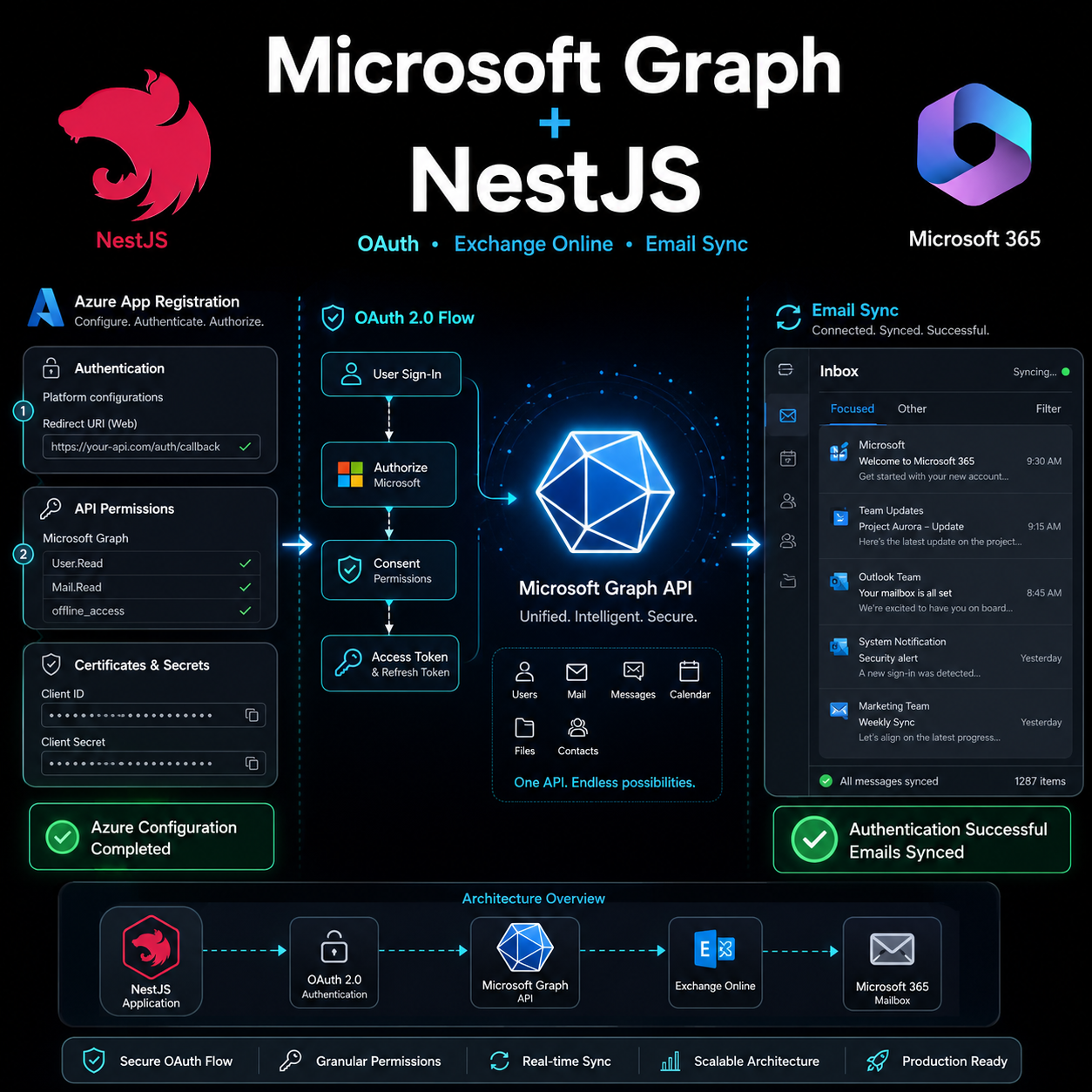
Understanding the Architecture
Before starting, it's important to understand the relationship between Microsoft's services.
Microsoft 365
│
├── Exchange Online (Emails)
├── Microsoft Entra ID (Identity)
├── Outlook
└── Microsoft Graph API
Your application never talks directly to Outlook.
Instead:
Application
    ↓
OAuth 2.0
    ↓
Microsoft Entra ID
    ↓
Microsoft Graph API
    ↓
Exchange Online Mailbox
Step 1: Purchase Microsoft 365 Business Basic
For development and testing purposes, Microsoft 365 Business Basic is usually sufficient.
Benefits include:
Exchange Online mailbox
Microsoft Graph API access
Outlook
IMAP
SMTP
OAuth support
After signup, Microsoft automatically creates a tenant domain such as:
Ensure Azure Redirect URI exactly matches application configuration.
Unauthorized Client
Cause:
Incorrect tenant or account type configuration.
Solution:
Verify supported account types and tenant configuration.
Missing Mail Permissions
Cause:
Admin consent not granted.
Solution:
Grant admin consent after adding Graph permissions.
Final Thoughts
Microsoft's ecosystem can seem complicated initially, but once you understand the relationship between Microsoft 365, Exchange Online, Entra ID, OAuth, and Microsoft Graph, the setup becomes straightforward.
By following this guide, you'll have a fully functional email integration capable of reading emails, sending messages, synchronizing folders, and building modern SaaS applications powered by Microsoft 365.
Share:
Subscribe to my newsletter
Get the latest articles, tutorials, and updates delivered straight to your inbox. No spam, unsubscribe at any time.